Dead Pixel Test Guide
Dead pixels, stuck pixels, bright dots, and uneven areas are easier to notice when the entire panel shows a single solid color. This guide explains how to test a screen carefully with White Screen.im and how to avoid common false alarms.
Dead Pixel Inspection Map
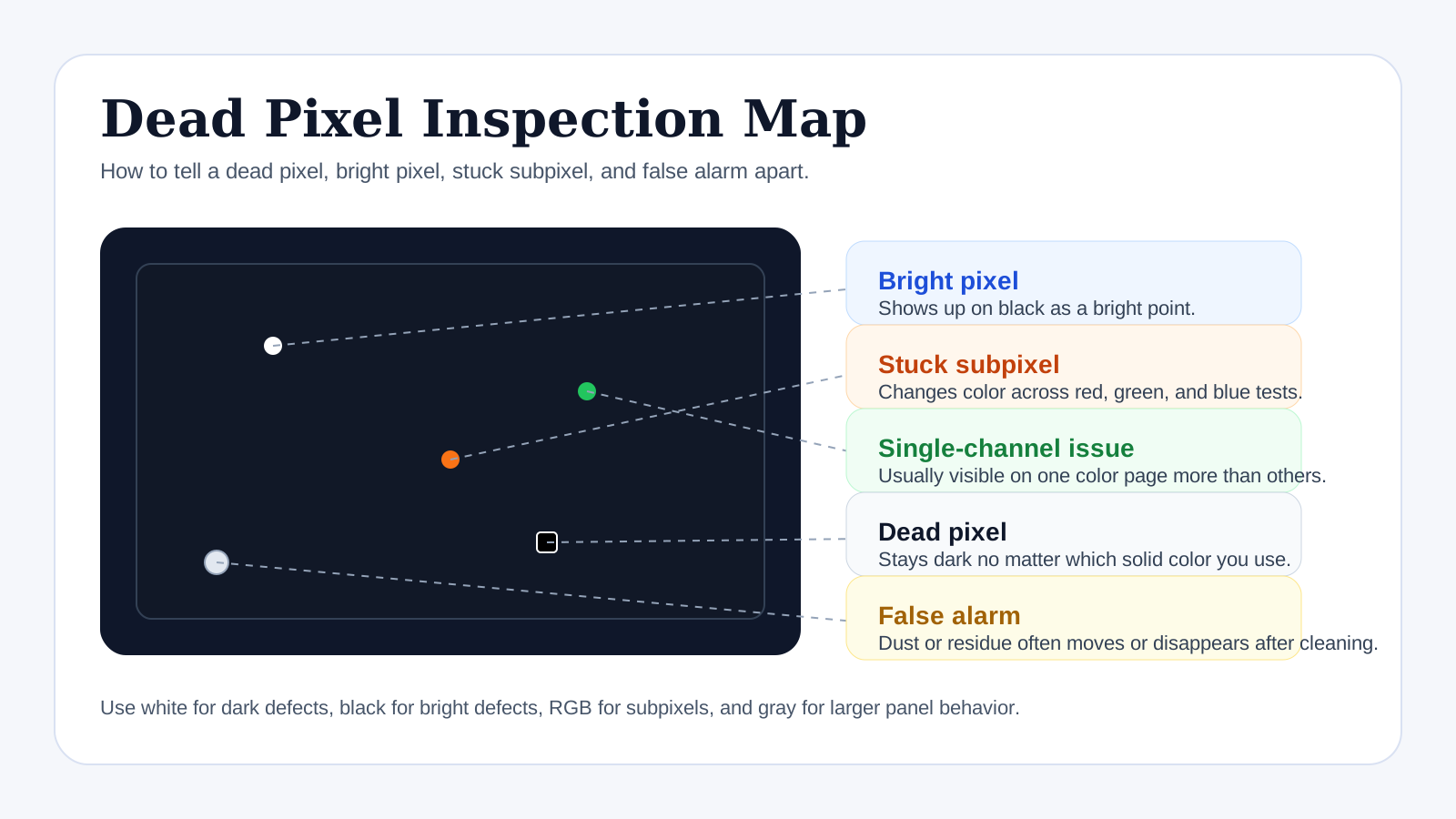
Use this quick legend to separate a true pixel defect from a surface mark or a larger panel issue.
Bright pixel
Shows up on black as a bright point.
Stuck subpixel
Changes color across red, green, and blue checks.
Single-channel issue
Usually much easier to see on one color page than on others.
Dead pixel
Stays dark on every solid color.
False alarm
Dust or residue often moves or disappears after cleaning.
Quick Answer
If you only have two minutes, the fastest reliable workflow is:
- Open White Screen in fullscreen and look for obvious black dots, yellow patches, or dirt.
- Open Black Screen and check whether the same area turns into a bright point or glow.
- Cycle through Red Screen, Green Screen, and Blue Screen to see whether only one color channel is affected.
- Use Gray Screen last to catch subtle tint differences and dirty-screen effect.
That sequence is usually enough to tell whether you are dealing with dirt, a single bad subpixel, a full dead pixel, or a larger panel-uniformity issue.
What You Are Looking For
Not every mark on a display is the same problem. During a visual check, people usually notice one of these:
- Dead pixel: a pixel that stays dark even when the screen should be lit
- Stuck pixel: a pixel locked on one color, often red, green, blue, or white
- Bright dot: a pixel or subpixel that remains brighter than the surrounding area
- Uniformity issue: parts of the screen appear darker, brighter, warmer, or cooler than the rest
- Dust or surface dirt: marks on the panel surface that look like display defects until the screen is cleaned
The goal of testing is to separate a real panel problem from a temporary visual effect or a simple cleaning issue.
When To Run A Pixel Test
A quick test is useful when:
- you receive a new monitor, laptop, or phone
- you notice a suspicious dot or line during normal use
- the panel looks uneven on light backgrounds
- you want to check an OLED screen for retention after long static use
- you plan to clean the display and want to confirm whether the mark is on the surface or inside the panel
Before You Start
Set up the test so you are not chasing reflections or dirt:
- Wipe obvious dust from the screen surface first.
- Reduce strong room reflections if possible.
- Let the display warm up for a few minutes.
- Set the screen to its native resolution.
- Turn off aggressive blue-light filters or vendor color effects during the test.
If you are checking a phone or laptop, raise brightness enough to see the panel clearly, but do not keep maximum brightness active longer than needed on OLED screens.
A Practical Test Setup
The quality of the result depends as much on the setup as on the test page itself. A poor environment creates false positives.
Use this checklist before you begin:
- Sit directly in front of the panel instead of checking from a steep angle.
- Turn off auto-brightness if your device keeps changing panel output.
- Reduce strong overhead reflections, especially on glossy laptop and phone screens.
- Clean the surface lightly before testing so dust does not imitate dead pixels.
- On phones, rotate to landscape if that makes the suspicious area easier to inspect.
If you are checking a new monitor out of the box, let it run for a short time before judging the panel. A fresh panel can look different after warming up, especially when brightness or local dimming features are active.
Best Colors To Use
Different colors reveal different problems. A complete test usually uses more than one page.
White Screen
Use White Screen first for:
- dust and smudges
- dark pixels
- brightness non-uniformity
- yellow or gray patches
White is also the fastest way to notice whether a suspicious spot might just be dirt on the surface.
Black Screen
Use Black Screen for:
- bright stuck pixels
- glow around the panel edges
- obvious backlight bleed on LCD panels
- image retention that appears brighter than the surrounding black area
Test black in a darker room if you want to check edge bleed or glow more carefully.
Red, Green, And Blue Screens
Use Red Screen, Green Screen, and Blue Screen to identify subpixel issues. If a pixel disappears or behaves differently on only one of these pages, the problem may affect only one color channel instead of the full pixel.
Gray Screen
Use Gray Screen when you want to check:
- subtle tint differences
- dirty-screen effect
- faint bands or patches
- panel uniformity during normal brightness use
Gray often reveals issues that are less obvious on full white or full black.
Symptom Guide
Use this quick reference if you are unsure what you are seeing:
| What you see | Most likely cause | Best next screen |
|---|---|---|
| Black dot on white only | dead pixel, dust, or surface debris | Black screen, then clean surface |
| Bright dot on black | stuck pixel or bright subpixel | Red, green, and blue screens |
| Patchy gray area | uniformity issue or dirty-screen effect | Gray screen |
| Glow at corners on black | LCD glow or backlight bleed | Black screen in a darker room |
| Same mark on every color | dirt, scratch, or permanent panel defect | Clean panel, then retest |
This is not a lab diagnosis, but it is usually enough for a practical first pass before deciding whether to clean, retest, or document a warranty claim.
Step-By-Step Testing Workflow
1. Start With White
Open the white screen in fullscreen mode. Scan the display slowly from left to right and top to bottom. If you notice a dot, move closer to confirm whether it is on the surface or inside the panel.
2. Switch To Black
If the spot still appears suspicious, open the black screen. A bright point visible on black but not on white often suggests a stuck or bright pixel.
3. Cycle Through Red, Green, And Blue
Move through each color page one at a time. Watch the same location. If the defect changes or disappears depending on the color, you are likely dealing with a subpixel issue rather than a completely dead pixel.
4. Finish With Gray
Use gray to check for larger panel consistency problems. Look for cloudy areas, tint shifts, or stripes that become visible only on neutral tones.
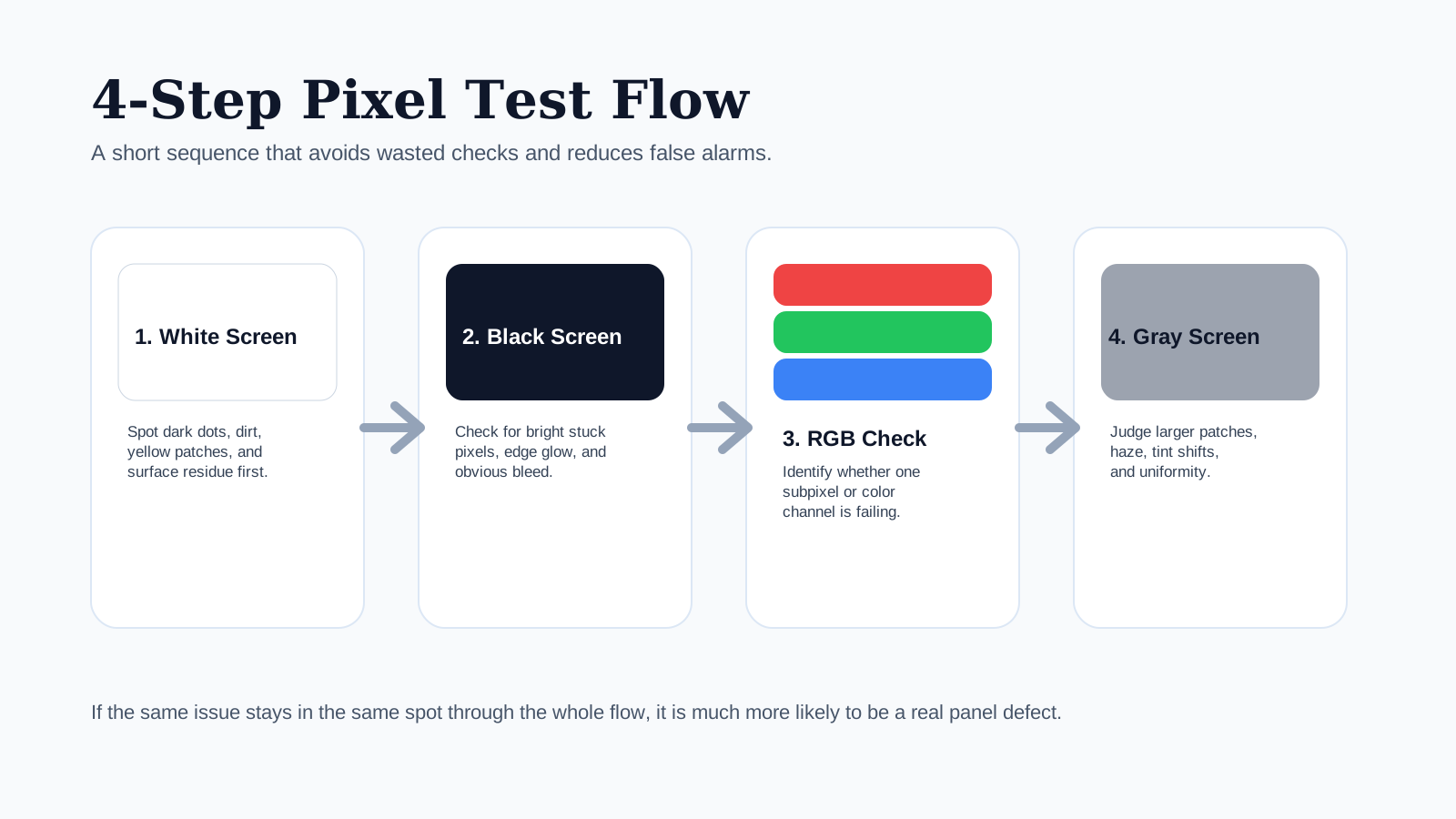
4-Step Pixel Test Flow
1. White Screen
Find dark dots, dirt, and obvious surface marks.
2. Black Screen
Check for bright stuck pixels, glow, and edge bleed.
3. RGB Check
Confirm whether one color channel or subpixel is failing.
4. Gray Screen
Judge larger haze, tint shifts, and panel consistency.
How To Scan The Panel Efficiently
A lot of people miss defects because they look at the screen too casually. A better method is:
- Divide the panel mentally into four quadrants.
- Scan each quadrant left to right.
- Move closer only after you notice a suspicious point.
- Switch colors without changing your seating position.
- Recheck the same area at a normal viewing distance.
This matters because some issues only appear close up, while others are visible only from your normal working position. A defect that disappears completely at normal distance may not matter for real use, while a broad uniformity problem often matters more than a single subpixel.
LCD Vs OLED: What Changes?
LCD Panels
LCD screens are more likely to show:
- backlight bleed
- edge glow
- uneven brightness near corners
- pressure marks after transport
Black and gray screens are especially useful for LCD checks.
OLED Panels
OLED screens are more sensitive to:
- image retention
- burn-in risk from static content
- color and brightness shifts at high brightness
When testing OLED, keep sessions shorter and avoid leaving a static bright screen open longer than necessary. If you suspect retention, compare black, gray, and white after a short break.
What This Test Can And Cannot Tell You
This kind of solid-color test is very good for:
- spotting obvious pixel defects
- revealing surface dirt that looks like a defect
- checking brightness consistency
- comparing whether an issue changes across colors
It is not enough on its own for:
- precise color calibration
- measuring brightness with scientific accuracy
- diagnosing internal panel electronics
- proving that a manufacturer must accept a warranty claim
Think of it as a practical inspection method, not a formal service-center report.
Common False Alarms
People often mistake these for dead pixels:
- dust on the panel
- a tiny scratch in the surface coating
- reflections from a nearby light source
- compression artifacts in a low-quality test image
- browser UI elements that are still visible because fullscreen was not fully active
If a mark moves when you wipe the panel or disappears when you change viewing angle, it is probably not a dead pixel.
When To Photograph The Problem
If you plan to contact a seller or manufacturer, document the defect while it is clearly visible:
- photograph the panel on the screen color that shows the defect best
- take one close shot and one wider shot showing the screen context
- note the device model, panel size, and purchase date
- write down whether the issue appears on white, black, gray, or RGB pages
Good documentation saves time later, especially if the problem appears intermittently and is hard to reproduce on demand.
What To Do If You Find A Defect
If the issue appears consistently in the same place on multiple colors:
- Note the exact position on the screen.
- Test again after restarting the device.
- Compare with another app or another solid-color source.
- Review the display warranty or retailer return policy.
- Photograph the issue if it is large enough to capture clearly.
For new hardware, it is often worth checking the seller’s pixel policy right away because return windows can be short.
A Good Final Decision Rule
After testing, ask these three questions:
- Is the issue visible on more than one solid color?
- Is it visible from your normal viewing distance, not just a few inches away?
- Does it affect real use, not just test conditions?
If the answer is yes to all three, the issue is much more likely to be worth documenting and pursuing. If the answer is no, you may be looking at a cosmetic or edge-case defect that matters far less in daily use.
Related Tools
Related Guides
- Screen Color Test Guide
- Screen Uniformity Test Guide
- OLED Burn-In Prevention Guide
- Monitor Cleaning Guide
Final Tip
Do not rely on a single color or a single viewing distance. A proper panel check is short, methodical, and uses multiple solid backgrounds so you can separate real hardware issues from dirt, reflections, or temporary visual effects.
