Screen Uniformity Test Guide
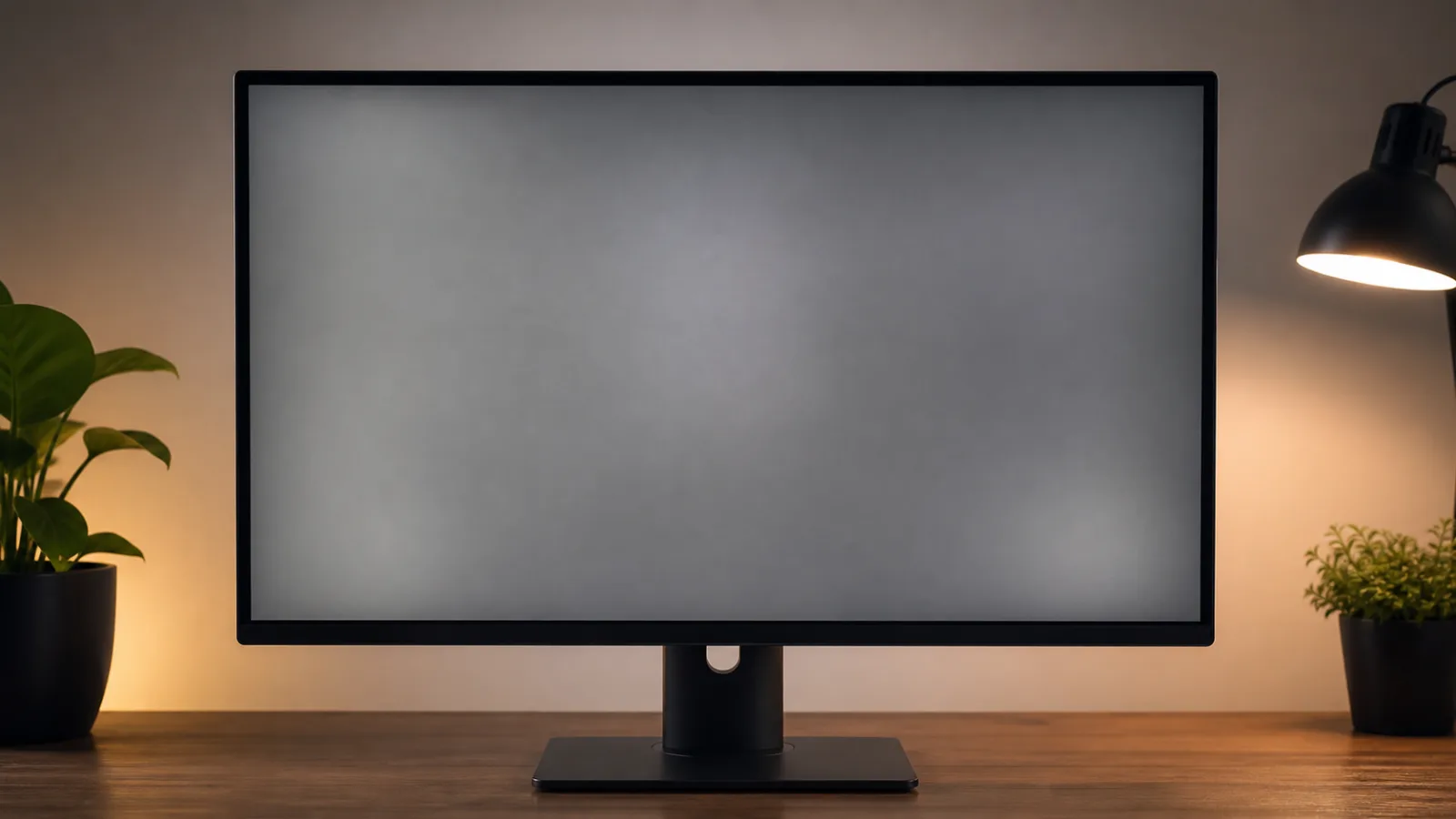
Screen uniformity problems are not always obvious during normal use. A panel can look acceptable on mixed content but still show dark corners, tinted zones, gray patches, or backlight bleed when the entire display is filled with one solid color. This guide explains how to test uniformity properly with White Screen.im and how to decide whether a result matters in real use.
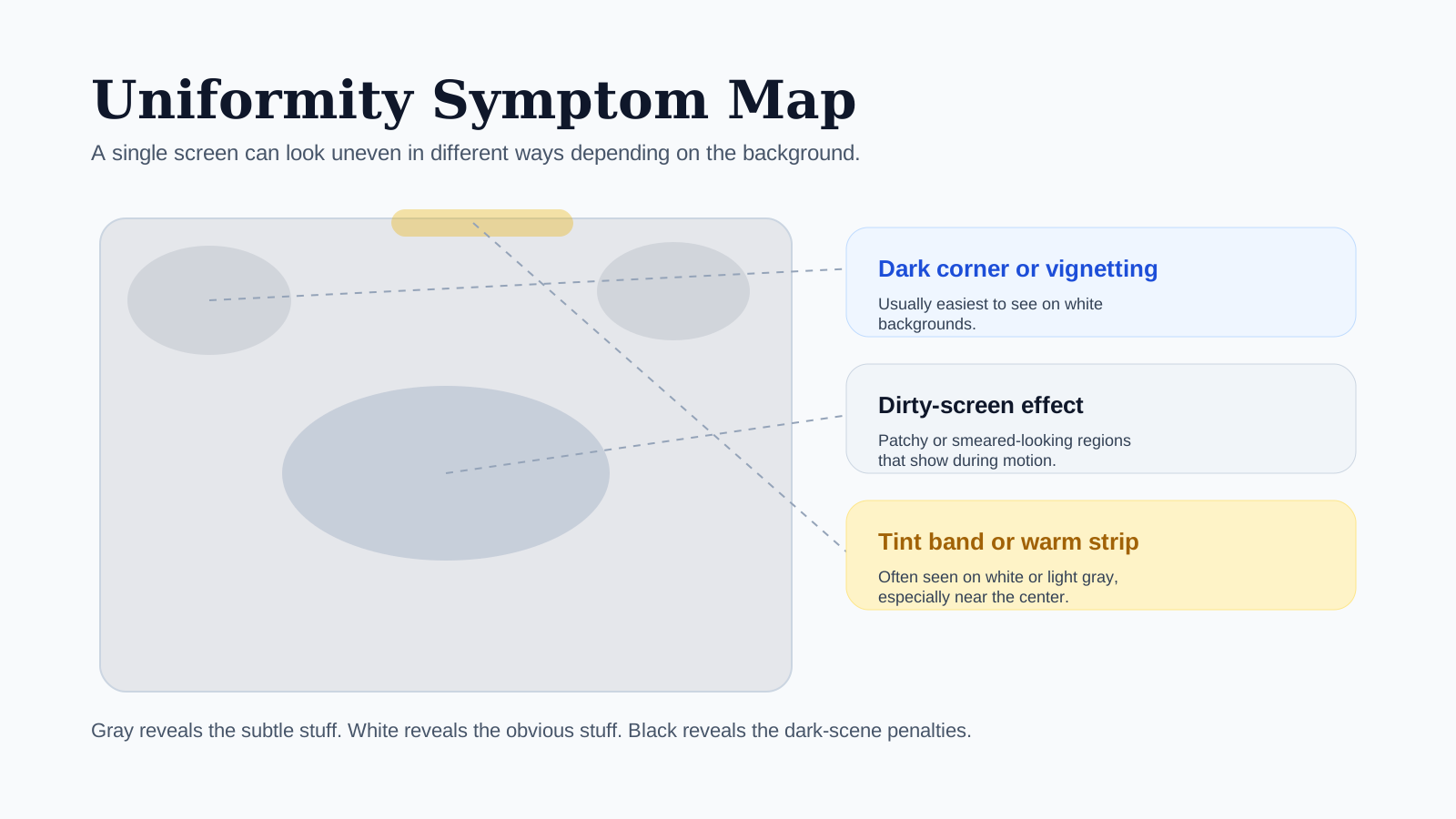
Uniformity Symptom Map
Dark corner or vignetting
Usually easiest to notice on white backgrounds.
Dirty-screen effect
Patchy or smeared-looking regions that show during motion.
Tint band or warm strip
Often more visible on white or light gray than on mixed content.
Quick Answer
If you want the fastest practical uniformity check:
- Open White Screen in fullscreen and check for dark corners, yellow areas, or cloudy patches.
- Switch to Gray Screen to inspect subtle tint differences and dirty-screen effect.
- Finish on Black Screen in a dim room to look for glow, edge bleed, and lifted corners.
- Repeat the same check from your normal viewing distance, not only from a few inches away.
That short sequence catches the majority of real-world uniformity issues without requiring special software or hardware tools.
What Screen Uniformity Actually Means
Uniformity is the degree to which the display looks consistent across the full panel. A uniform screen should not show obvious hot spots, dark zones, warm patches, cool patches, or edge glow when the image is supposed to be evenly filled.
In practice, people usually notice one of these:
- one side looks warmer or cooler than the other
- corners appear darker on white backgrounds
- a gray background shows streaks, patches, or a dirty look
- black scenes look lifted near the edges
- one area looks brighter than the rest even when brightness is unchanged
The important distinction is that uniformity issues are usually broader than a single pixel defect. They affect regions, edges, or zones rather than one tiny dot.
When A Uniformity Test Is Worth Doing
This kind of check is useful when:
- you just unboxed a new monitor or TV
- the panel looks uneven during web browsing or office work
- sports, panning shots, or games show a dirty-screen effect
- dark scenes look washed out around the edges
- photo or design work needs a more even-looking panel
- you suspect pressure marks after transport or cleaning
Not every user cares about the same threshold. A panel that is fine for casual work may still be disappointing for video editing, photography, or gaming with large dark scenes.
A Better Test Setup
A weak setup creates misleading results. Before you judge the panel, control the environment:
- Sit centered in front of the display.
- Turn off auto-brightness and any adaptive contrast modes.
- Let the panel warm up for a few minutes.
- Use the native resolution and normal scaling.
- Reduce strong reflections from windows or lamps.
- If possible, test at the brightness you normally use rather than always at maximum.
For black-screen checks, dim the room somewhat. For white and gray checks, normal indoor light is usually better because it reflects actual use.
Why White, Gray, And Black Matter Most
Different backgrounds reveal different parts of the problem.
White Screen
White Screen is useful for:
- dark corners
- yellow or pink patches
- obvious brightness imbalance
- pressure marks
- dust or residue that may be mistaken for a panel problem
White is a strong first pass because defects and dirt both become easy to see. Clean the surface before assuming the issue is inside the panel.
Gray Screen
Gray Screen is the most revealing page for:
- dirty-screen effect
- slight tint shifts
- faint vertical bands
- mild haze
- uneven neutral balance across the panel
If the screen looks mostly fine on white but still feels inconsistent in real use, gray often shows the reason more clearly.
Black Screen
Black Screen is best for:
- backlight bleed on LCD panels
- lifted corners
- glow near edges
- poor black uniformity
- retained shadows that stand out in dark scenes
Use black in a dimmer room and from your normal viewing position. Checking from a few inches away often exaggerates glow that is less relevant in daily use.
Symptom Guide
Use this table to identify what you are likely seeing:
| What you see | Most likely cause | Best next step |
|---|---|---|
| Dark corners on white | corner uniformity issue or panel vignetting | check white and gray again at normal brightness |
| Patchy gray with soft streaks | dirty-screen effect or mild banding | inspect on gray from normal viewing distance |
| Bright edges on black | backlight bleed or IPS glow | retest in dim light from centered position |
| Left side warmer than right | tint shift or panel uniformity variation | compare white and gray, then reduce viewing angle changes |
| One cloudy area after pressure | pressure mark or transport stress | let panel rest, retest later, avoid rubbing the area |
This does not replace instrument-based testing, but it is usually enough to decide whether the issue is minor, real but tolerable, or serious enough to document.
How To Run A Reliable Uniformity Check
1. Start With White
Open White Screen in fullscreen and scan the display in large zones. Look for dark corners, yellow patches, or a large cloudy area that breaks the even look of the panel.
2. Move To Gray
Open Gray Screen and keep your head in the same position. Do not lean close immediately. Instead, watch for streaks, bands, and blotches that stand out during normal viewing.
3. Finish With Black
Open Black Screen in a dim room. Look for lifted corners, edge glow, and bleed along the bezel. If you are testing an LCD, this step matters a lot more than it does on an OLED.
4. Repeat At Real-Use Brightness
Many people test only at 100% brightness, then judge the panel too harshly. Repeat the check at the brightness you normally use. A mild issue that disappears under real settings often matters less than a defect that is obvious at everyday brightness.
LCD Vs OLED: What Changes?
LCD Panels
LCD screens are more likely to show:
- backlight bleed
- glow around corners
- dirty-screen effect on gray
- darker corners on white
- pressure-related bright or dark zones
LCD uniformity issues often become obvious during sports, scrolling, dark movie scenes, and wide white webpages.
OLED Panels
OLED screens usually avoid classic LCD backlight bleed, but they can still show:
- tint shifts at low brightness
- subtle near-black non-uniformity
- temporary image retention
- brightness differences caused by panel compensation behavior
For OLED, gray and near-black checks are often more useful than pure white when you are trying to understand subtle unevenness.
What Dirty-Screen Effect Feels Like In Real Use
Dirty-screen effect is one of the most complained-about uniformity problems because it can be visible in motion even when a static test looks only mildly bad. People usually notice it when:
- panning across a bright sky or ice rink
- watching football or other sports
- scrolling a document or webpage
- moving a camera slowly in a game
On a test screen, dirty-screen effect appears as grayish or darker patches that make the panel look lightly smeared or blotchy. The question is not whether you can force yourself to see it from close range. The question is whether it breaks immersion at your normal seating distance.
Common Mistakes During Uniformity Testing
These mistakes cause people to misjudge good panels as bad, or bad panels as acceptable:
- checking from an off-center angle
- leaving room reflections on the screen
- confusing dust or residue with a panel patch
- testing only at maximum brightness
- judging IPS glow from nose-against-panel distance
- looking for perfection instead of real-world usability
The right standard is not “Does this panel look mathematically perfect?” The right standard is “Does this issue affect the kind of work or media I actually use?”
When The Issue Probably Matters
Uniformity becomes more meaningful when:
- it is visible from your normal viewing distance
- it affects everyday content, not just test pages
- the patch or tint is easy to see in multiple lighting conditions
- the problem appears in the same place every time
- you do photo, video, or design work where consistency matters
If the defect only appears under extreme test conditions and vanishes during normal use, it may not be worth treating as a practical problem.
When To Document It For Return Or Warranty
If you believe the panel is outside your tolerance:
- Photograph the display on the background that shows the issue best.
- Take one close shot and one normal-distance shot.
- Record the brightness level and room lighting.
- Note whether the issue appears on white, gray, black, or all three.
- Save the date, model, and seller information before the return window closes.
This matters because many panel problems are easier to argue when you can show that they are visible under normal, repeatable conditions rather than only in a single dramatic close-up.
Related Tools
- White Screen
- Gray Screen
- Black Screen
- Dead Pixel Test Guide
- Monitor Cleaning Guide
- Screen Color Test Guide
Final Tip
Use white to catch obvious imbalance, gray to judge subtle uniformity, and black to inspect dark-scene behavior. Then decide based on what you actually see from your normal seat. That is the practical standard that matters.
