Monitor Cleaning Guide
Cleaning a display looks simple, but using the wrong cloth, the wrong liquid, or too much pressure can leave streaks, damage the coating, or make the panel look worse than before. This guide explains a safe, simple method and how White Screen.im can help you inspect the result.
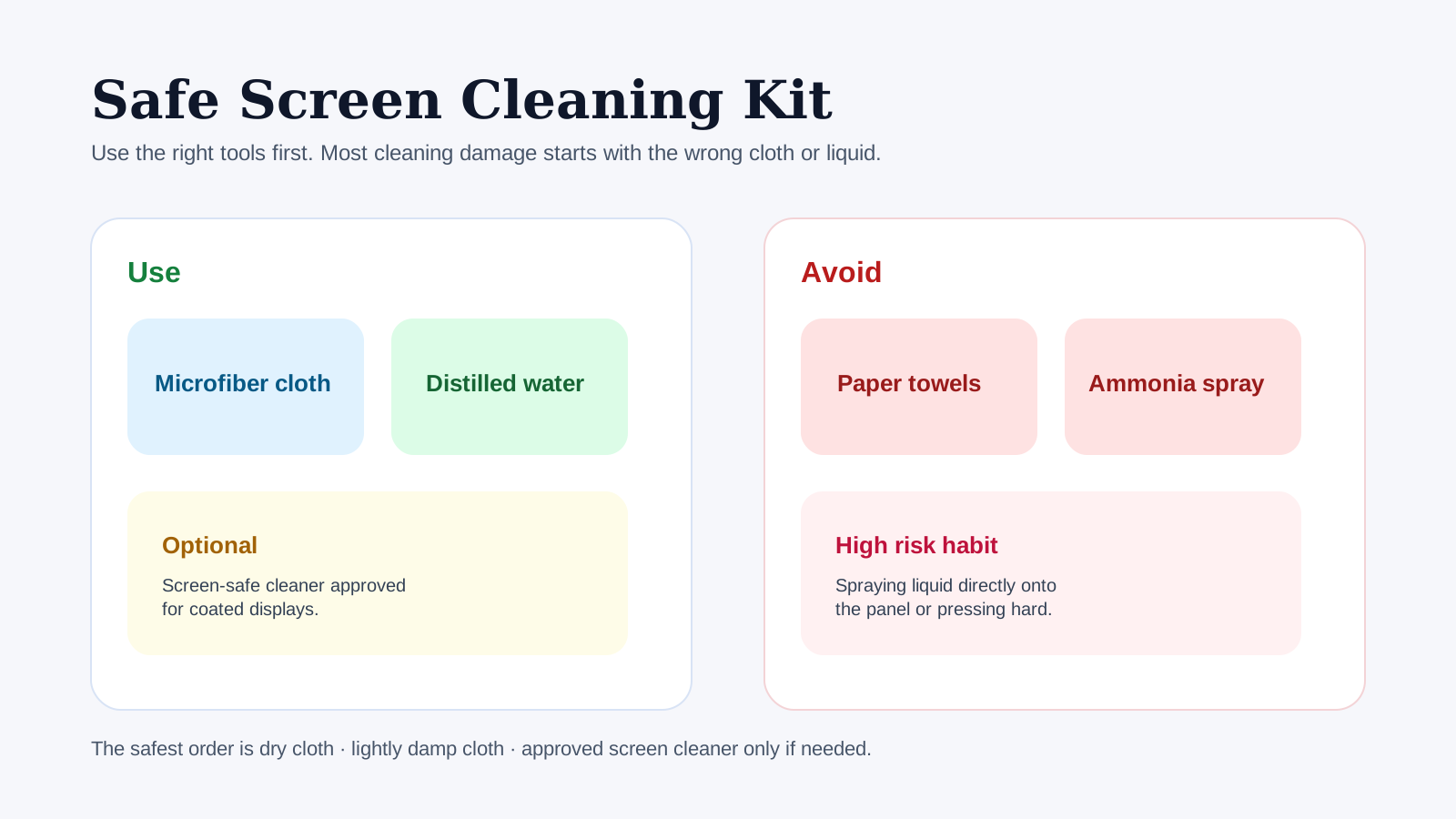
Safe Screen Cleaning Kit
Use
Clean microfiber cloth and, if needed, a little distilled water.
Optional
Screen-safe cleaner approved for coated displays.
Avoid
Paper towels, ammonia sprays, and spraying liquid directly onto the panel.
Quick Answer
The safest monitor-cleaning routine is:
- Turn the display off.
- Remove loose dust with a clean dry microfiber cloth.
- If needed, use a barely damp cloth, never a wet panel.
- Wipe gently with broad strokes and almost no pressure.
- Dry the surface.
- Open White Screen to inspect the result.
That is enough for most displays. Problems usually come from using the wrong cleaner, pressing too hard, or spraying liquid directly onto the panel.
Why A White Screen Helps
A bright solid background makes surface problems easier to notice. A white screen is useful for spotting:
- fingerprints and skin oil
- dust near the panel edges
- cleaning streaks
- dried liquid marks
- smudges that are hard to see on dark content
That is why many people open White Screen before and after cleaning. It gives you an even background that makes residue visible quickly.
What A Good Cleaning Result Looks Like
After cleaning, a good result usually means:
- no obvious streaks under a white background
- no rainbow smears when viewed straight on
- no clusters of dust near the bezel
- no new pressure marks or uneven patches caused by rough wiping
If the screen looks worse after cleaning than before, stop and reassess instead of repeating the same method more aggressively.
What You Need
Keep the setup simple:
- a clean microfiber cloth
- optional distilled water
- optional screen-safe cleaner recommended for coated displays
Avoid using paper towels, tissues, rough fabrics, or household cleaning sprays unless the manufacturer explicitly allows them.
Safe Liquid Order
If you are unsure what to use, this is the safest escalation path:
- Dry microfiber only
- Microfiber lightly dampened with distilled water
- Screen-safe cleaner approved for coated displays
Most routine cleaning should stop at step 1 or step 2. Jumping straight to strong cleaning fluids creates unnecessary risk.
What To Avoid
Do not use these unless your display maker says otherwise:
- glass cleaner with ammonia
- strong alcohol mixes on sensitive coatings
- bleach-based cleaners
- abrasive cloths or paper products
- excessive pressure with your fingertips
- spraying liquid directly onto the display
Even when a screen survives this once, repeated cleaning with the wrong material can wear the coating over time.
Why People Damage Screens While Cleaning
The most common cleaning damage does not come from one catastrophic mistake. It usually comes from small habits repeated over time:
- using the same dirty cloth over and over
- wiping too hard around one fingerprint
- spraying cleaner onto the panel instead of onto the cloth
- polishing the panel like glass instead of treating it like a coated surface
This matters because many modern monitors, laptops, and tablets use delicate anti-glare or anti-reflective coatings that are easier to mark than people expect.
Safe Cleaning Process
1. Turn The Screen Off
Switch the display off and let it cool for a moment. Smudges and dust are often easier to see on a dark, inactive panel, and you reduce the chance of accidental taps or pressure while the device is active.
2. Remove Loose Dust First
Use a dry microfiber cloth to lift loose dust gently. Wipe lightly from one side to the other instead of scrubbing in circles right away. This reduces the chance of dragging particles across the screen.
3. Use Minimal Moisture
If dry wiping is not enough, lightly dampen the cloth, not the panel. The cloth should feel barely moist, not wet. Distilled water is usually the safest starting point for a routine clean.
4. Wipe Gently
Use soft, even strokes. Do not press hard on LCD, OLED, or laptop panels. If a mark does not disappear after a couple of light passes, stop and reassess instead of pushing harder.
5. Dry The Surface
Use a dry part of the microfiber cloth to remove remaining moisture and streaks.
6. Check With A White Screen
Turn the display back on and open White Screen. Look for:
- streaks left by the cloth
- missed fingerprints
- dust trapped near bezels
- spots that might actually be panel defects rather than dirt
If a mark remains visible on white, switch briefly to Black Screen or Gray Screen to tell whether it is surface residue or a display issue.
A Practical Inspection Routine
If you want a more reliable result, use this short sequence:
- Check the dark, powered-off panel for obvious fingerprints and dust.
- Clean it.
- Open White Screen and inspect from normal viewing distance.
- Open Gray Screen if the issue is subtle or looks like haze.
- Open Black Screen if you suspect the problem is not dirt but a panel defect.
This sequence reduces the chance of mistaking a hardware issue for a cleaning issue.
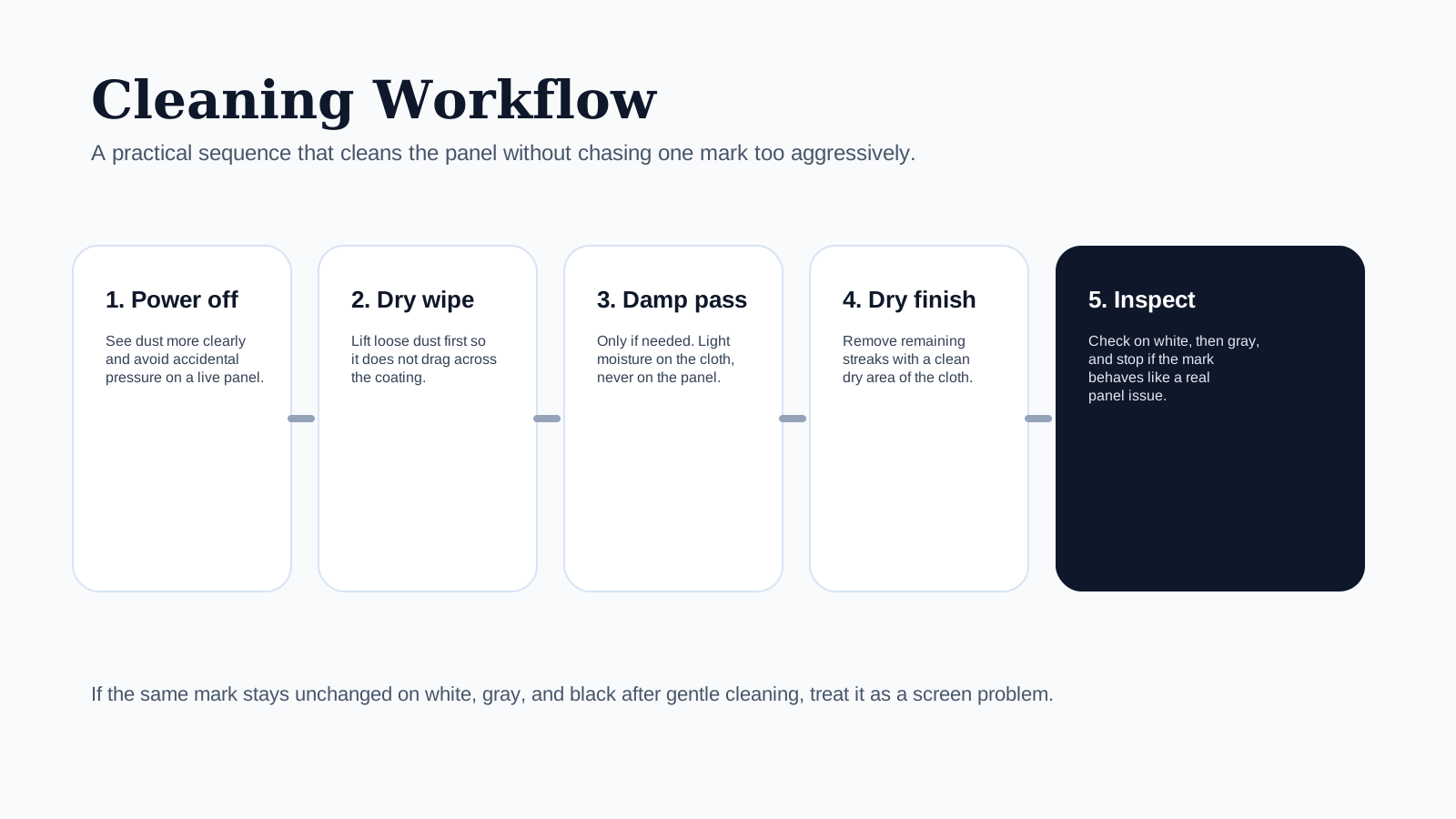
Cleaning Workflow
1. Power off
See dust more clearly and avoid pressing on a live panel.
2. Dry wipe
Lift loose dust before anything damp touches the coating.
3. Damp pass if needed
Moisture goes on the cloth, never directly on the screen.
4. Dry finish
Use a clean dry area to remove remaining streaks.
5. Inspect
Check on white, then gray, and stop if the mark behaves like a panel issue.
Cleaning Different Types Of Screens
External Monitors
These are usually the easiest to clean because the panel is fixed and the screen is larger. Still, avoid leaning on the panel while wiping and pay attention to the edges where dust often collects.
Laptop Screens
Laptop panels are thinner and easier to flex under pressure. Support the lid carefully and use especially light strokes.
Phone And Tablet Screens
These screens often collect more oil because of direct touch. A microfiber cloth works well for daily cleaning. If you use a screen protector, streaks may come from the protector rather than the panel underneath.
OLED Displays
OLED panels can show image retention or subtle tint variation that may look like a cleaning issue at first glance. If a mark stays visible after cleaning, compare it across white, black, and gray backgrounds before assuming it is residue.
Device-Specific Advice
Glossy Office Monitors
These tend to show fingerprints and room reflections clearly. White is excellent for final inspection because it exposes streaks fast.
Matte Professional Monitors
Be especially gentle. Matte coatings can look patchy if too much liquid is used or if the cloth is dirty.
Gaming Laptops
Support the lid carefully while cleaning. Laptop panels flex more easily than external monitors, so pressure marks are easier to create by accident.
Phones And Tablets
Daily fingerprints are normal. Most of the time, a dry microfiber cloth is enough unless there is dried residue on the glass or protector.
Common Mistakes
These mistakes cause most cleaning problems:
- cleaning while dust particles are still on the panel
- using too much liquid
- wiping with a dirty cloth
- pressing hard on one small area
- trying to polish away a mark that is actually inside the panel
If a spot remains after gentle cleaning and looks identical on multiple backgrounds, it may not be dirt at all.
Troubleshooting After Cleaning
Use this quick guide if the result still looks wrong:
| What you see after cleaning | Most likely cause | Best next step |
|---|---|---|
| Long vertical or curved streaks | too much liquid or uneven drying | use a dry clean microfiber cloth |
| Cloudy patch that does not move | panel uniformity issue or pressure mark | inspect on gray and black |
| Tiny dark specks near edges | trapped dust | dry wipe the bezel edge carefully |
| Rainbow smear | oily residue or coating interaction | stop scrubbing and retest gently |
| Mark unchanged on white, black, and gray | likely panel issue, not dirt | use the dead-pixel guide |
How Often Should You Clean A Monitor?
There is no perfect schedule. Clean when the screen has enough dust or smudges to affect visibility. For most people:
- quick dry wipe: as needed
- deeper clean with a slightly damp cloth: occasionally
- repeated heavy cleaning: avoid unless necessary
More cleaning is not always better. The safest approach is light, controlled cleaning only when the panel needs it.
When To Stop Cleaning
Stop and reassess if:
- the panel starts showing pressure ripples while you wipe
- the mark does not change after two light passes
- you are tempted to use more force to chase a stubborn spot
- the issue looks identical on white, black, and gray backgrounds
At that point, continuing to rub the same area often causes more harm than the original dirt.
When Cleaning Is Not Enough
If you still notice a dark spot, bright dot, patch, or line after cleaning:
- Open White Screen, Black Screen, and Gray Screen.
- Compare the same location on each color.
- If the problem remains in the same place, it may be a panel defect rather than dirt.
- Use the Dead Pixel Test Guide to continue troubleshooting.
Final Check Before You Put The Device Back In Use
Before you are done, verify three things:
- The screen looks clean under White Screen.
- Neutral tones on Gray Screen do not show obvious haze or wipe marks.
- Nothing suspicious remains visible on Black Screen that might actually be a display problem.
Related Guides
- Dead Pixel Test Guide
- Screen Color Test Guide
- Screen Uniformity Test Guide
- OLED Burn-In Prevention Guide
Final Tip
The safest routine is simple: clean gently, use very little moisture, and verify the result on a white screen. If you treat the panel lightly and check it methodically, you avoid most cleaning damage and make real display issues easier to identify.
