
Countdown Timer
Pick a duration, then start fullscreen. Esc to leave.
Fullscreen flip-clock countdown
00:01:00Starting in 5
More screens
What is a countdown timer?
A countdown timer shows time left, not the time of day. Desk talks, study blocks, and kitchen holds need a remaining clock that can fill a display. This page is that clock in a browser.
Remaining time, not a wall clock
The flip clock screensaver on this site keeps civil time. This URL counts down. If the joke or the lesson is “five minutes left,” stay here.
Fullscreen overlay in this tab
Nothing is installed. Closing the tab ends it. Pause and Reset do not talk to the operating system clock.
How to use the countdown timer
- 1
Pick a duration
Choose how long the countdown should run. Use a chip, or Custom for any number of minutes.
- 2
Optional start delay
Use 5 or 10 seconds of delay if you need time to put the laptop down or face the room.
- 3
Start fullscreen
Press Start fullscreen. The preview becomes the flip-clock countdown. F11 also works on a computer after the display is focused.
- 4
Pause, reset, or leave
Pause and Reset stay on the overlay. Esc exits fullscreen. Close the tab and the timer is gone.
Duration is wall-clock time for the remaining digits, not a fake CPU. Restart sends the clock back to the duration you picked without reloading the page.
Start delay is only a countdown in this tab. After it hits zero, the overlay runs until you pause, reset, or leave.
If a phone keeps the address bar, rotate to landscape. That is a browser limit, not a broken timer.
How to run the countdown timer fullscreen
Browser chrome is the usual giveaway. Start fullscreen, or press F11 once the preview is focused.
Phone and landscape fallback
On many phones native fullscreen is blocked, so this page falls back to a layout that still covers the viewport. Landscape hides more of the address bar.
Leave with Esc
Leave with Esc on desktop, or the browser back control on mobile. The countdown is only this tab.
Talks, study blocks, and kitchen holds
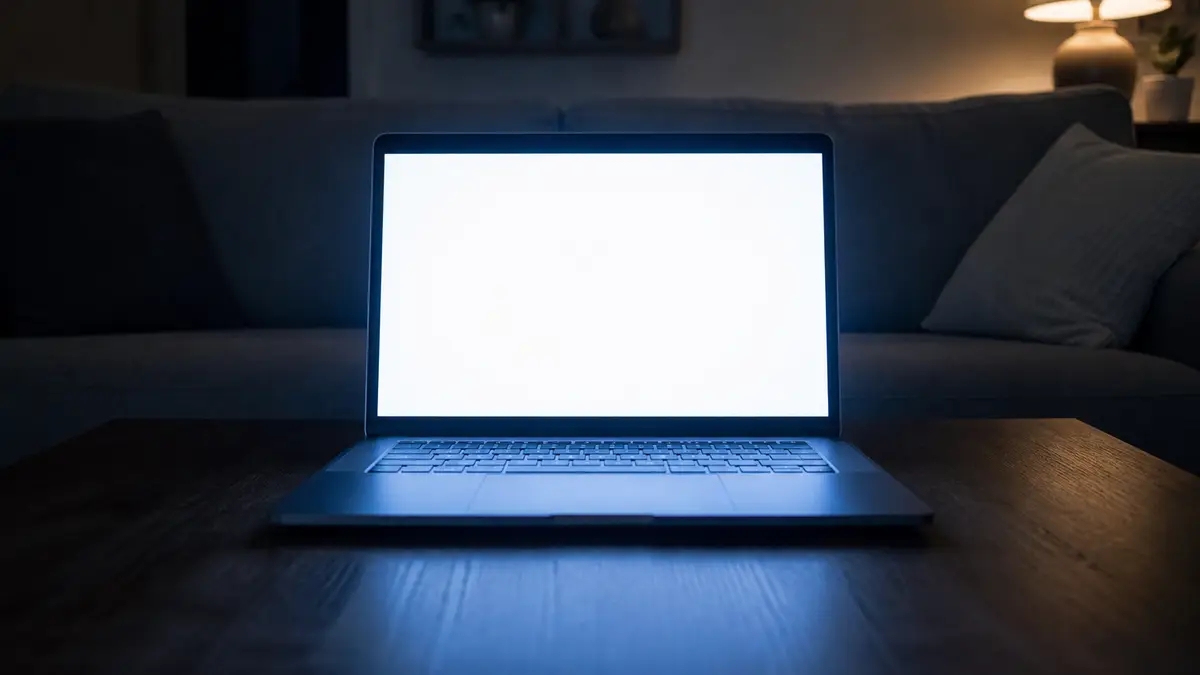
A short remaining clock works if people can see the digits from their seat.
Talks and classrooms
Put the laptop on the lectern, pick 15 or 30 minutes, and start fullscreen. Pause if the room runs long. Do not use it to lock someone off a deadline.
Study and kitchen
Custom minutes covers a pomodoro or a bake. The digits flip so the hold does not look like a frozen screenshot.
What this page will not do
This URL is only a remaining-time overlay.
Not a wall clock
It will not show the time of day. That is the flip clock screensaver on this site.
No alarm file and no extra screens
It will not ring, pop a new window on another monitor, or install an app. Multi-screen popups stay off.
Not a stopwatch
Count-up lives on the stopwatch page. This page only counts down.
Countdown timer FAQ
What is a fullscreen countdown timer?
A fullscreen countdown timer is a remaining-time clock that can fill the display. This page uses flip-clock digits in the browser. It is not this site's flip clock screensaver, which shows the current time.
Is this the same as the flip clock screensaver?
No. The flip clock page answers what time it is. This URL answers how much time is left. Use the screensaver when you want a desk clock. Use this page for a pomodoro, a talk, or a kitchen hold.
How do I use this countdown timer?
Pick a duration, or Custom for any number of minutes. Optionally add a short start delay, then press Start fullscreen. Pause, Resume, and Reset sit on the overlay. Esc leaves fullscreen.
How do I make it full screen?
Use Start fullscreen, or the corner control after the preview is focused. On a computer, F11 also works once the display has focus. On phones the same button uses a mobile fullscreen layout because many browsers block the native API.
How do I pause or reset?
In fullscreen, use Pause, Resume, or Reset on the overlay. Restart in the sidebar sends the digits back to the duration you picked. Closing the tab ends it.
Does it play a sound when it hits zero?
No. The digits stop at 00:00:00. There is no siren and no download. If you need an alarm, that is a different tool.
Does this work on a phone or a Mac?
Yes. The timer is a webpage. Landscape usually hides more of the browser chrome on a phone.
Do I need to download an app?
No. There is nothing to install. A file that claims to be this timer as an EXE or APK is a different site.
