



What a fake Windows 10 update screen actually does
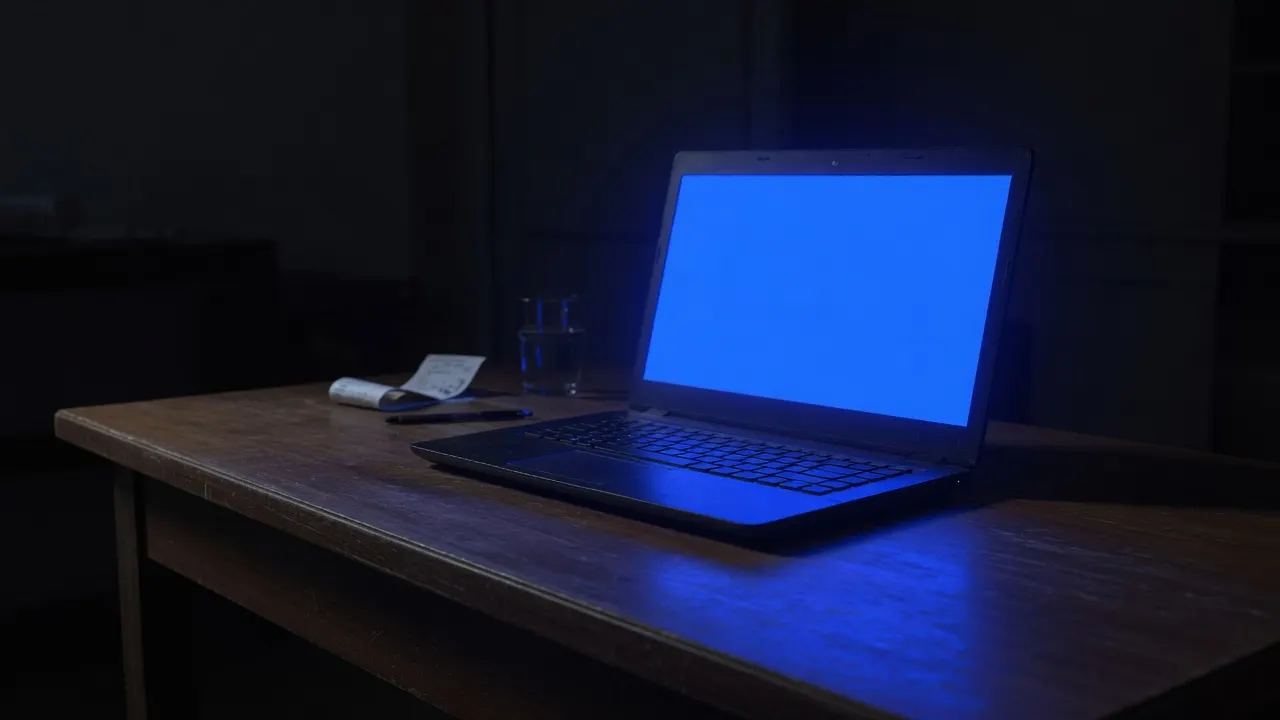
A fake Windows 10 update screen copies one still from a long install: a blue field, a cluster of white dots, and a percent that crawls.
Hollywood and office gags skip the Settings app and jump to that frame. This page is that frame in a browser. It is not Windows Update, not a driver pack, and not a way to skip a real patch Tuesday.
The overlay is original CSS in this tab.
The overlay is original CSS in this tab. Closing the tab ends it. If you need the darker Windows 11 skin, open the fake Windows 11 update screen instead of stretching this blue one. If you need falling code, that is Hacker Typer, not an update bar.
How to use this fake Windows 10 update screen
- 1
Pick a duration
Choose how long the percent should take to fill. Use a chip, or Custom for any number of minutes. Five minutes is a short desk gag. One hour is for a clip or a longer hold.
- 2
Optional start percent and delay
Start from sets the first percent so the gag does not always begin at 0. Use 5 or 10 seconds of delay if you need time to put the laptop down.
- 3
Start fullscreen
Press Start fullscreen. The preview becomes the fake Windows 10 update screen. F11 also works on a computer after the display is focused.
- 4
Leave with Esc
Esc exits fullscreen. Close the tab and the overlay is gone. Show the address bar when you reveal the joke.
Duration is wall-clock time for the remaining percent, not a fake CPU. One minute fills quickly for a demo. One hour crawls, which matches people searching for a fake Windows 10 update screen with a timer. Restart sends the counter back to the start-from percent without reloading the page.
Start delay is only a countdown in this tab. It is not a scheduled task on the computer. After it hits zero, the overlay runs until you leave or restart. Notifications still exist under the browser; mute them if the gag needs a clean field.
How to run the fake update fullscreen
Browser chrome is the usual giveaway.
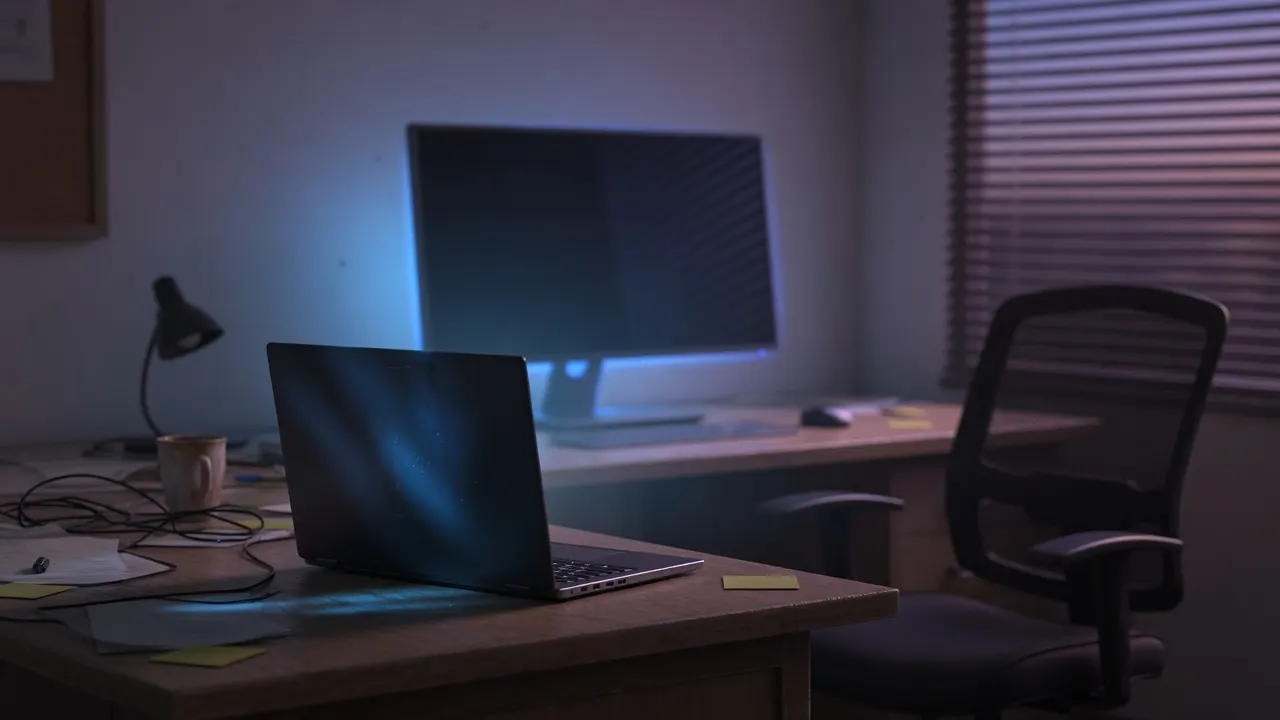
Start fullscreen, or press F11 once the preview is focused. On many phones native fullscreen is blocked, so this page falls back to a layout that still covers the viewport. Landscape hides more of the address bar. Dim the room if you are filming; the blue reads cleaner when the desk is dark.
Leave with Esc on desktop, or the browser back control on mobile.
The fake Windows 10 update screen is only this tab. If a glow remains after you close it, that is your panel, not this tool. No kiosk mode, no extension, no APK.
Timer, start delay, and the 1-hour hold
People search for a fake Windows update screen with a timer because a bar that jumps to 100% in two seconds looks like a GIF.
Duration chips map to how long the percent takes to climb. Custom accepts any minute count when 1 hour is not enough. Start from sets the first percent so the preview can already read 27% when someone walks in. The counter can rest at 100% so you are not forced into a loop.
Start delay exists so your hands are off the keyboard when someone walks in.
Five seconds is enough to stand up. Ten seconds is enough to leave the room. Neither delay survives closing the tab. There is no sound. There is no “stuck at 27%” mode on this page; if you want a hang, pick a long duration and leave it.
Fake update versus malware and ClickFix
Search results for this phrase mix prank tools with scam write-ups.
The dangerous pattern is a full-screen page that then tells you to open Run, paste a command, call a support number, or download an MSI. This page never does those things. It does not copy text to the clipboard. It does not play a siren.
A real Windows 10 update continues in TrustedInstaller after you close the browser.
This overlay does not. If you are teaching a class, put this tab next to Settings → Windows Update and show both. The lesson is the address bar, not the dots.
Desk prank, video, and classroom
A short desk prank works if the other person can see you laugh it off.
Match the skin to the machine: Windows 10 blue here, Windows 11 dark on the other URL. Film and stream setups use the same fullscreen field as a busy prop. Teachers can show that Esc kills a webpage and does not kill a real update.
Do not use the overlay to freeze someone off a deadline, fake an IT outage for money, or hide a real crash.
Capture the window if you need motion. A PNG of a blue glow is not this tool’s job; the job is the live percent.
What this page will not do
It will not patch Windows, skip a feature update, or “unstick” a PC that is actually installing updates.
It will not run on the lock screen after you close the browser. It is not a screensaver file you drop into System32.
It will not speak, pop fake errors, or open other monitors as extra windows.
Multi-screen popups are easy to block and easy to mistake for ads, so this version stays in one tab. Custom status text and a Microsoft logo are also out — the dots and the percent are the whole prop.
It also does not replace display tests.
It also does not replace display tests. Dead pixels still need dead pixel test and solid colors like black screen. This URL is only the fake Windows 10 update screen.
Frequently asked questions
What is a fake Windows 10 update screen?
A fake Windows 10 update screen is a browser overlay that copies the look of “Working on updates” with a percent counter and spinning dots. This page is that overlay. The keys you press are not system commands, and Windows Update is not running.
Does this install a real Windows update?
No. The fake Windows 10 update screen never talks to Microsoft, never writes files, and never restarts the machine. Closing the tab ends it. If a site asks you to download an installer or paste a command, leave — that is not this tool.
Is a fake Windows update screen a virus?
This one is not. Harmless prank pages only paint pixels in the tab. Malware pages tell you to press Win+R, paste PowerShell, call a phone number, or download an EXE. This page does none of that. Esc or close the tab and you are done.
How do I use this fake Windows 10 update screen?
Open this page, pick a duration, optionally add a short start delay, then press Start fullscreen. Walk away if you need to. Come back, press Esc, and show that it was only the browser. Keep the gag short and do not block real work.
How do I make it full screen?
Use Start fullscreen, or the corner control after the preview is focused. On a computer, F11 also works once the overlay has focus. On phones the same button uses a mobile fullscreen layout because many browsers block the native API.
How do I exit the fake update?
Press Esc. You can also leave fullscreen with F11, the system back control, or by closing the tab. A real Windows update will not vanish when you press Esc. That is the fastest way to prove this page is a prop.
Can I set a timer or run it for 1 hour?
Yes. Use the duration chips for 1 minute through 1 hour, or Custom for any number of minutes. Start from sets the first percent so the gag does not always begin at 0. Start delay waits a few seconds so you can put the laptop down. The bar can sit at 100% until you restart or leave.
Does it work on a laptop?
Yes. The usual laptop prank is: duration first, a 5-second delay, Start fullscreen, then walk away. Brightness up and notifications off help. Show the address bar when you reveal it so nobody thinks Settings is actually updating.
Does the fake Windows update screen work on mobile?
It runs in the phone browser, but the gag is weaker because people expect updates on a PC. Landscape hides more chrome. Use it to preview the overlay, not as a substitute for a laptop left on a desk.
Do I need to download a fake Windows 10 update?
No. There is no APK, no desktop installer, and no Chrome extension. If a listing promises a “real fake update” file, it is a scam. This tool is only the tab you already opened.
Is there a Windows 11 fake update screen?
Yes. Use the Windows 11 page on this site for the dark overlay. Keep this URL when the machine actually runs Windows 10 — a Windows 11 skin on a Windows 10 desktop is an easy tell.
Will it ask me to press Win+R or paste a command?
Never. That pattern is ClickFix malware, not a prank overlay. This page has no clipboard tricks, no Run dialog, and no “complete the update” prompt. If you see those on another site, close it.
Can I use this as a wallpaper or screensaver?
No. The overlay lives in this tab. It is not a live wallpaper, a Windows screensaver file, or a lock screen. For a still, screenshot the overlay. For motion, record the window.
How can I tell this apart from a real Windows 10 update?
Esc dismisses it. Task Manager shows a browser, not TrustedInstaller. The address bar is visible if you leave fullscreen. Real updates continue after you kill Chrome. This one does not.
Does it play sound?
No. Some novelty sites add disk grind or error beeps. This page stays silent so it cannot be used as a scare pop-up. The gag is visual: blue field, dots, percent.
Does the fake Windows 10 update screen work on a Mac?
Yes, as a browser overlay. The gag is visual. A Mac will not run Windows Update. Use it for a clip or a joke, then press Esc. There is no Boot Camp step, no ISO, and no installer.
Is this fake Windows update screen unblocked?
It is a normal webpage on this site. If a school or work filter blocks the host, this tab cannot magically bypass it. There is no extra unblocked download, proxy, or Chrome extension. If the page loads, the overlay runs.
