
A complete monitor test in one guided sequence
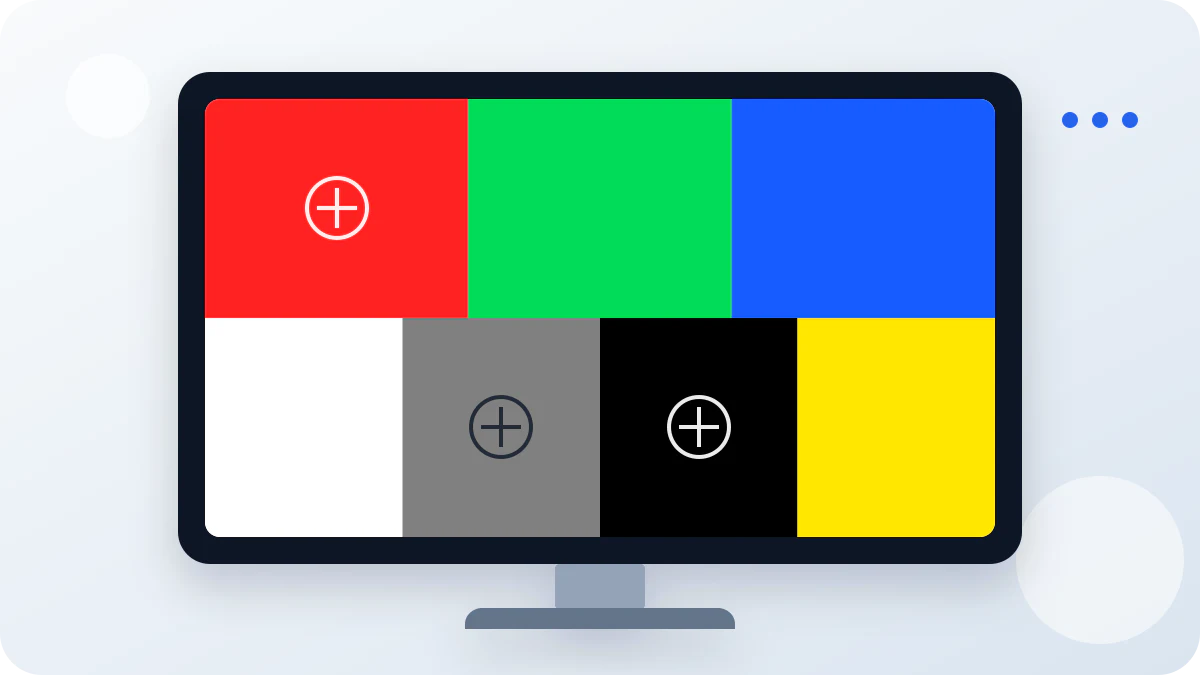
A useful monitor test removes the detail that normally hides small display problems. This page moves through twelve controlled patterns in a fixed order, so you can inspect the same panel area while the background changes. White and black expose opposite pixel failures. Red, green, and blue isolate the primary subpixels. Mid-gray makes uneven brightness and color tint easier to notice. Gradients, level bars, a sharpness pattern, and a geometry grid reveal tone clipping, scaling, alignment, or transitions that should look smooth.
The workflow is broader than a single-color page but remains quick enough for a new monitor, used laptop, repaired phone, tablet, TV, or external display. Nothing is uploaded, and the monitor test does not read hardware data. It simply presents predictable browser patterns and gives you a consistent way to look. The automatic five-second pace is only a guide; pause on a single pattern whenever you need longer. Most panels can be checked in three to five minutes.
How to run an accurate monitor test online
- Prepare the display: Gently remove obvious dust, use your normal picture mode, and keep room lighting steady so reflections do not look like panel defects.
- Start the fullscreen test: Select Start monitor test and allow fullscreen when available. The sequence begins with white, advances every five seconds, and also responds to a click or tap.
- Inspect every pattern: Move through solid colors, gray and color gradients, black and white levels, sharpness, and geometry. Click, tap, swipe, or use the arrow keys while scanning the center, edges, and corners.
- Recheck suspicious areas: Click or tap to move forward, or use the arrow keys and horizontal swipes while watching the same spot. Compare multiple patterns before deciding whether it is dust, a pixel defect, or uniformity variation.
- Confirm with normal content: Exit the monitor test and check familiar photos, video, text, or games. A test pattern reveals a variation; everyday content shows whether it affects real use.
Keep brightness realistic. Maximum brightness in a dark room can exaggerate glow, eye strain, and edge variation, while very low brightness can hide defects. Run the monitor test once with your everyday settings before trying special modes. Disable a dynamic contrast option only if it visibly changes the pattern while you inspect it. If you compare two displays, use similar room light and picture settings so the monitor check online remains meaningful.
What each display test pattern can reveal
White is the best opening monitor test pattern for dark dead pixels, dust, scratches, smudges, pressure marks, and broad color tint. Black does the opposite: it can reveal bright stuck pixels, backlight bleed, clouding, and glow. Red, green, and blue help determine whether a suspicious point is tied to one subpixel channel. Watch the same point as you move between these colors instead of searching the whole screen from the beginning each time.
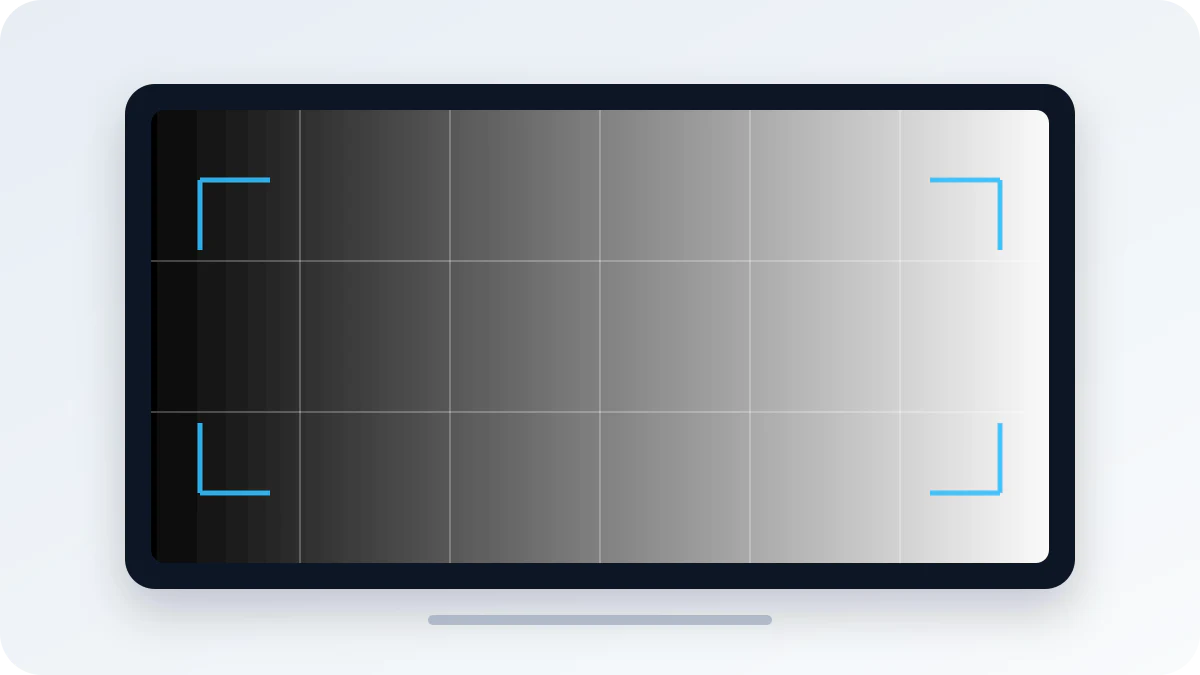
The 50% gray monitor test pattern is useful for dirty screen effect, edge darkening, vertical bands, and warmer or cooler patches. The grayscale ramp should progress continuously from black to white. Visible stripes or sudden jumps may indicate panel behavior, limited signal range, a display setting, or color-processing limits. The color ramp is a broad visual check for transitions and clipping; it is not a substitute for measured calibration.
Black-level and white-level bars add a more focused monitor test for shadow and highlight detail. Adjacent dark bars should remain distinguishable instead of collapsing into one black block, while the light bars should not merge prematurely into solid white. The sharpness checkerboard can reveal browser scaling, blur, ringing, or excessive edge enhancement. Finish the monitor test with the geometry grid: its lines should stay straight, evenly spaced, and aligned from the center to the edges of the panel.
Monitor test online for laptops, phones, and tablets
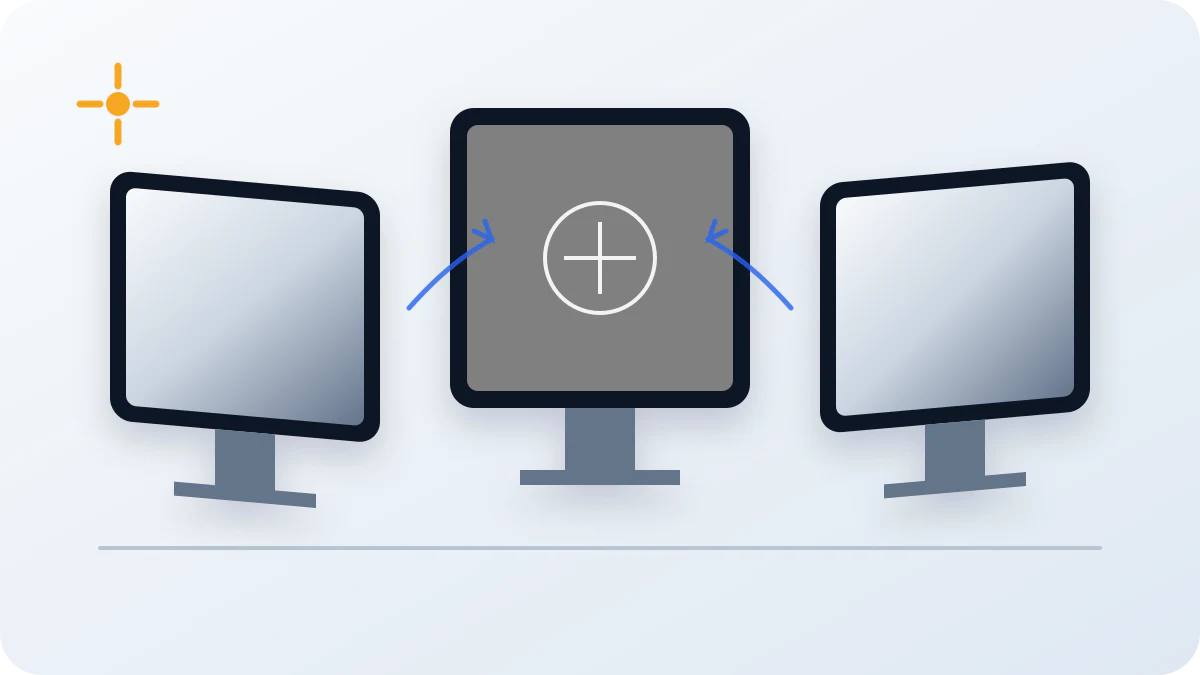
On a laptop, run the monitor test with the lid at your normal angle because many LCD panels change contrast and brightness with viewing position. If an external display is connected, place the browser on one screen at a time and repeat the sequence. On a phone or tablet, rotate the device when useful and inspect around notches, rounded corners, folds, repaired glass, and areas where pressure damage is more likely. Touch controls and horizontal swipes move between steps, while the mobile full-window fallback reduces browser chrome on devices that restrict native fullscreen.
A camera photo is not the first judge. Phone cameras can add moiré, exposure changes, lens reflections, and false banding. Look directly at the display during the monitor test, then take a photo only if you need to document a repeatable issue. For a TV, begin from normal seating distance and move closer only after noticing something. A tiny variation that is invisible during real viewing may not require action.
How to interpret the monitor test without false alarms
A dot that stays in exactly the same position across several colors may be a dead, stuck, or weak pixel. A mark that changes when you clean the glass or move your head is more likely to be dust, a reflection, or a surface issue. Large cloudy areas on gray can be dirty screen effect; light near the corners on black may be backlight bleed or viewing-angle glow. OLED panels can show near-black banding or temporary retention that is different from LCD backlight behavior. Use the dedicated OLED gray screen test when low-gray performance is your main concern.
One monitor test cannot decide whether a panel should be returned. Repeat the suspicious step, compare normal content, and check the seller or manufacturer pixel policy while the return window is open. Do not press, rub, or tap a defect with a hard object. This tool finds visible symptoms; it does not repair pixels, measure color accuracy, certify a display, or replace a colorimeter. For a focused pixel sequence, continue with the dead pixel test. For DSE and backlight variation, use the screen uniformity test.
Monitor test FAQ
Is this monitor test online free?
Yes. The monitor test is free, runs in your browser, and does not require an account. You can repeat all twelve patterns on as many displays as you need.
Does the display test online work on laptops?
Yes. Use the display test online on a laptop in its normal picture mode and at the brightness you use every day. Connect external monitors one at a time if you want to compare panels.
Can I run the screen test online on a phone?
Yes. The screen test online works in modern mobile browsers. Rotate the phone if needed, use the fullscreen control, and inspect the panel without pressing on suspicious marks.
Does it work on iPhone, Android, and touch screens?
Yes. The controls support touch, swiping, and mobile browsers on iPhone and Android. When native fullscreen is unavailable, the page uses a mobile full-window view so the test remains practical.
Do I need to download anything?
No. Every monitor test pattern is generated in the browser. No image, app, extension, account, or display data upload is required.
What is the most common screen defect?
Dust and surface marks are common false alarms. Real display issues include dead or stuck pixels, backlight bleed, glow, tint, dirty screen effect, gradient banding, and uneven brightness.
Can software fix a dead pixel?
A browser monitor test cannot repair a physically dead pixel. Some stuck pixels change over time, but flashing patterns and pressure methods are not guaranteed and can create unnecessary risk.
Should I use fullscreen mode?
Fullscreen is recommended because it removes browser controls and exposes more of the panel. You can still use the monitor test in the page if fullscreen is restricted by your browser.
What do white, black, and RGB screens reveal?
White highlights dark pixels, dust, and tint. Black reveals bright pixels, glow, and bleed. Red, green, and blue isolate subpixel behavior, while gray and gradients expose uniformity and banding.
Can this monitor test calibrate colors?
No. It is a visual monitor check online, not a colorimeter. It can reveal obvious color transitions or tint, but accurate calibration requires suitable hardware and controlled lighting.
How long should the monitor test take?
A careful first pass usually takes three to five minutes. Spend longer on any pattern that reveals a suspicious dot, patch, line, or color shift, then compare it with normal content.
Is the test safe for OLED screens?
Short checks are suitable for OLED screens. Avoid leaving a static pattern unattended at maximum brightness, move through the steps normally, and use the maker's panel-care features as directed.
